In an effort to maintain standards, Hanwha uses the web UI for all knowledge base
articles pertaining to product configuration. Open Chrome, enter the IP Address
of your device into the URL bar, and click Enter. If you are not using the web UI
to configure your device, please refer to the user manual for your product.
Summary
This article provides instructions on how to reset most Hanwha cameras if you are locked out due to forgotten credentials or if the camera is unresponsive. It also explains how to reset a camera through the Web UI to clear unwanted configuration settings.
Resetting a Camera
To perform a full hardware reset:
While the unit is powered on (not during bootup), hold the RESET button for approximately 30 seconds or until you see the LED lights change color.
For more detailed information about the RESET button location, refer to the manual of your model. The button is recessed and either blue or white in color.WARNING: The RESET button process will wipe all information.
Only use if no other option exists.- Release the RESET button, and wait for the unit to reboot on its own, usually about 1 minute.
This process will reset all of the settings in the camera, including defaulting the IP address to 192.168.1.100. If DHCP is present on the network, the unit will obtain an address automatically.
- Open your browser and enter the camera IP address in the URL bar, then press Enter.
- Enter new credentials for the camera, then click Apply.
Enter your new credentials and log in to the camera.
IMPORTANT: No recorded information on the Micro SD cards will be lost
but third-party applications in the Open Platform section will be
removed by this process.
Removing Misconfigured Settings
To remove misconfigured settings:
- Open your browser and enter the camera IP address in the URL bar, then press Enter.
- Enter new credentials for the camera.
If you do not know the credentials, you will need to reset the device physically at the device.
Click the Gear icon in the center top of the interface.
In the navigation bar on the left, select System > Upgrade / Restart.
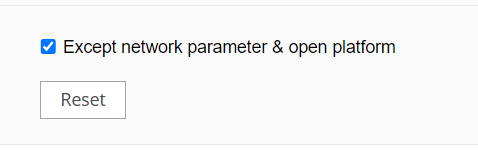
Click the RESET button.
NOTE: You can choose to default the camera completely or retain the IP
information by checking the Except network parameter & open platform box.
This option can retain Open Platform applications on certain models.